
Online risks now reach everyone, not just tech experts. With scams, hacking, and data theft growing, everyday users face threats that used to target only large businesses. But the good news is, you don’t need a technical background to stay safe.
AI-based cybersecurity apps are making protection simple. These tools handle security behind the scenes so you can focus on what matters. In this post, you’ll find easy-to-use options designed for people who want safety without the technical hassle. You’ll also get clear setup guides and practical advice to avoid common mistakes.
Why Everyday Users Need AI Cybersecurity Tools

Photo by Tara Winstead
Staying secure online is not just a concern for tech professionals. Everyday users are now prime targets for cybercriminals, who use smart tricks to steal information and money. Most people have heard about phishing or viruses, but today’s attacks are more common and far less obvious. With so many risks hiding behind routine clicks, everyone needs smarter, simpler protection. That’s where AI cybersecurity tools shine. They work in the background, sense threats fast and keep users a step ahead—without calling for any advanced knowledge or effort.
Common Threats Non-Tech Users Face
Cyber dangers often look like normal emails, texts or even pop-up ads. Here are some of the most common risks:
- Phishing Attacks: These are fake emails or messages that look real and try to trick you into giving up passwords or bank details.
- Malware: Harmful software can sneak onto your device through unsafe downloads, links or attachments, then steal data or lock files for ransom.
- Identity Theft: Personal information can be stolen and used to open bank accounts, apply for credit or impersonate you elsewhere online.
- Weak Passwords: Using simple or reused passwords makes it easy for hackers to break into accounts.
- Fake Websites: Some sites copy real brands but only exist to steal your information.
These threats don’t need technical mistakes to work. Even clicking one wrong link, responding to a fake message, or using an old password can be enough.
How AI Tools Make Protection Simple
AI cybersecurity apps make it easier than ever to stay safe, even for those who don’t feel confident with technology. Here’s how they help:
- Automatic Scanning: AI can spot risky websites, emails, or apps quickly and alert you before you act.
- Smart Recommendations: Many apps suggest better passwords or warn if yours have leaked somewhere on the web.
- Learning Over Time: AI tools get smarter the more you use them, recognizing new scams as they appear.
- Hands-Off Protection: Almost everything happens in the background. Once set up, these tools work while you browse, shop, or stay in touch.
Simple Setup for Everyday Users
Most modern AI security apps guide users step by step. Typical setup involves:
- Download the App: Most are available from trusted app stores.
- Sign Up or Log In: Create an account or use your current email.
- Follow Instructions: The app often walks you through turning on strong protections, like real-time scam filters or automatic password checks.
- Stay Alert to Notifications: Apps send warnings if anything looks risky—just follow the prompts.
Common Pitfalls and How to Avoid Them
Even the best tools are only as good as their use. Here are some typical mistakes and tips:
- Ignoring alerts or updates: Always pay attention to app warnings and keep software up to date.
- Skipping setup steps: Don’t rush. Follow each prompt so all protections are active.
- Reusing weak passwords: Use the app’s password manager or generator for strong, unique passwords everywhere.
- Assuming “set and forget” is enough: Regularly check the app’s dashboard for any new security advice.
Protecting your online life doesn’t have to be stressful or complex. By choosing AI-driven cybersecurity tools made for everyday users, you can enjoy peace of mind and let technology do the heavy lifting.
Top AI-Powered Cybersecurity Apps for Non-Techies
AI-powered security apps now make online safety simple, even for those with limited tech skills. These tools combine smart features with easy setup, guiding users through each step and handling most tasks in the background. This section highlights top tools for password management, anti-phishing, and scam detection, focusing on those that are user-friendly yet robust enough for daily protection.
AI-Powered Password Managers: Review Tools like 1Password and Bitwarden, Focusing on Automated Password Generation and Secure Storage

Photo by cottonbro studio
Password managers have become essential for managing multiple logins without stress. Apps like 1Password and Bitwarden use AI to store and fill passwords automatically, reducing risks from reused or weak passwords. With these tools, you do not have to remember dozens of passwords anymore.
Key benefits:
- Automated password generation: The app creates long, complex passwords for each website.
- One-click login: Securely fill login forms with one tap or click.
- Encrypted storage: Your passwords are kept safe behind one master password only you know.
- Cross-device sync: Access your passwords on phone, tablet, and computer.
Setting up a password manager:
- Download the app from your device’s store or visit the website.
- Create an account with a strong master password.
- Import or add your existing passwords.
- Enable autofill options for browsers and apps for easy access.
Common pitfalls:
Some users forget to secure their master password or skip browser integration. Always set up biometric login (fingerprint or face) if possible and check settings to enable sync across devices.
Smart Anti-Phishing Protection: Showcase Browser Extensions or Email Tools That Use AI to Flag Suspicious Links and Messages
Phishing is one of the top online threats, often hiding in emails or websites that appear genuine. AI-powered browser extensions and email add-ons, like Avast Online Security and Microsoft Defender SmartScreen, actively scan for fraud.
What these tools offer:
- Real-time alerts: Get notifications if you click or open a potentially dangerous link.
- Automatic link scanning: AI checks sites and messages for signs of phishing or fake content.
- Simple installation: Most tools add with one click to Chrome, Firefox, or Edge.
How to set up:
- Go to your browser’s extension store.
- Search for trusted anti-phishing tools.
- Install and follow setup prompts.
- Allow notifications and link scanning.
Mistakes to avoid:
Do not ignore security alerts. Stay wary of emails from unknown senders, even if flagged as safe. Some phishing tricks slip by, so always double-check before clicking links.
AI Scam and Fraud Detection Apps: Discuss Mobile and Desktop Apps That Warn About Scam Calls, Texts, or Websites, Explaining How AI Helps
AI-based scam detection apps like Hiya, Truecaller, and Norton 360 help block scam calls, texts, and risky websites before they reach you. These apps use AI to analyze call and text patterns, flagging numbers or messages known for fraud.
Features for non-techies:
- Automatic scam call blocking: AI detects common scam “signatures” and prevents the call from reaching you.
- Spam and fraud alerts: Get instant warnings for suspicious texts or websites.
- Simple setup: Download the app, give permission to manage calls or texts, and let the AI handle the rest.
Setup guide:
- Download from the App Store or Google Play.
- Open the app and follow on-screen instructions.
- Allow permissions for calls, texts, or browser protection.
- Review alerts and block listed numbers as needed.
Common errors:
Some users decline permissions, which limits detection. Always allow call, contacts, or SMS access as prompted for full protection.
AI-driven apps now give everyday users strong defense with minimal effort. By choosing tools built for simplicity, you can stay a step ahead of cyber threats and focus on what matters most.
Step-by-Step Setup Guides for Recommended Apps
Setting up AI cybersecurity tools does not have to be hard. Most apps made for everyday users are simple to install and walk you through each step. This section covers how to get started with the most recommended tools: password managers, anti-phishing tools, and scam detectors. Use these guides to avoid common missteps and turn on the strongest protection.
How to Set Up an AI Password Manager: Break down the onboarding and sync process in simple terms
Password managers remove the stress of remembering unique logins for every website and app. Getting started is simple and can save time while boosting security.
- Download the Password Manager App
Go to your device’s app store (Apple App Store, Google Play, or trusted official website). Choose a password manager like 1Password or Bitwarden. - Create Your Account and Master Password
Open the app and sign up. Set a strong master password. This is the only password you need to remember, so pick something unique and long, ideally a passphrase. - Add or Import Existing Passwords
Most apps let you import passwords from your browser or another manager. Follow the prompts to add logins from Chrome, Safari, or Edge, or enter them manually. - Enable Sync Across Devices
Turn on sync so your passwords are accessible from your phone, tablet, and computer. This step often asks you to verify your email or use a code sent to your device. - Activate Auto-Fill and Browser Integration
The app will guide you to enable auto-fill in settings. Allow browser integration when prompted. This lets the password manager fill in passwords automatically as you browse. - Turn On Biometric Login (Optional)
Many password managers let you unlock the vault with your fingerprint or face ID. Set this up for faster, safer logins.
Common Setup Issues:
- Skipping the import step can leave you with missing logins.
- Turning off sync prevents access to passwords on all your devices.
- Not backing up your master password risks permanent lockout. Write it down and store it safely.
Installing and Using Smart Anti-Phishing Tools: Walk through browser extension set-up and what to expect
Anti-phishing tools protect you while browsing and checking email, flagging risky links and websites.
- Go to Your Browser’s Extension Store
Open the Chrome Web Store, Firefox Add-ons, or Edge Add-ons. Search for trusted AI anti-phishing extensions like Avast Online Security. - Install the Extension
Click “Add to browser” and accept the permissions. The extension will appear as a small icon near your address bar. - Complete Setup Prompts
The tool may ask to run a quick tour. Allow it to scan active tabs and your browsing history (this is needed to spot dangers). - Allow Notifications
Enable notifications so you get real-time warnings about suspicious sites and links. - Check Extension Settings
Open the extension’s options to fine-tune features like pop-up alerts or allowlisting trusted sites.
What to Expect:
- The extension may highlight links in red or show a pop-up if you stumble onto a risky website.
- Some tools scan new emails for phishing signs and issue warnings.
- You can usually report any missed scams with a click.
Common Pitfalls:
- Some users ignore the permission prompts, limiting the extension’s ability to protect.
- Turning off notifications can cause you to miss urgent alerts.
- Not updating the extension leaves you open to new phishing tactics.
Getting Started with AI Scam Detectors: Guide readers through mobile or desktop app setup and how alerts work
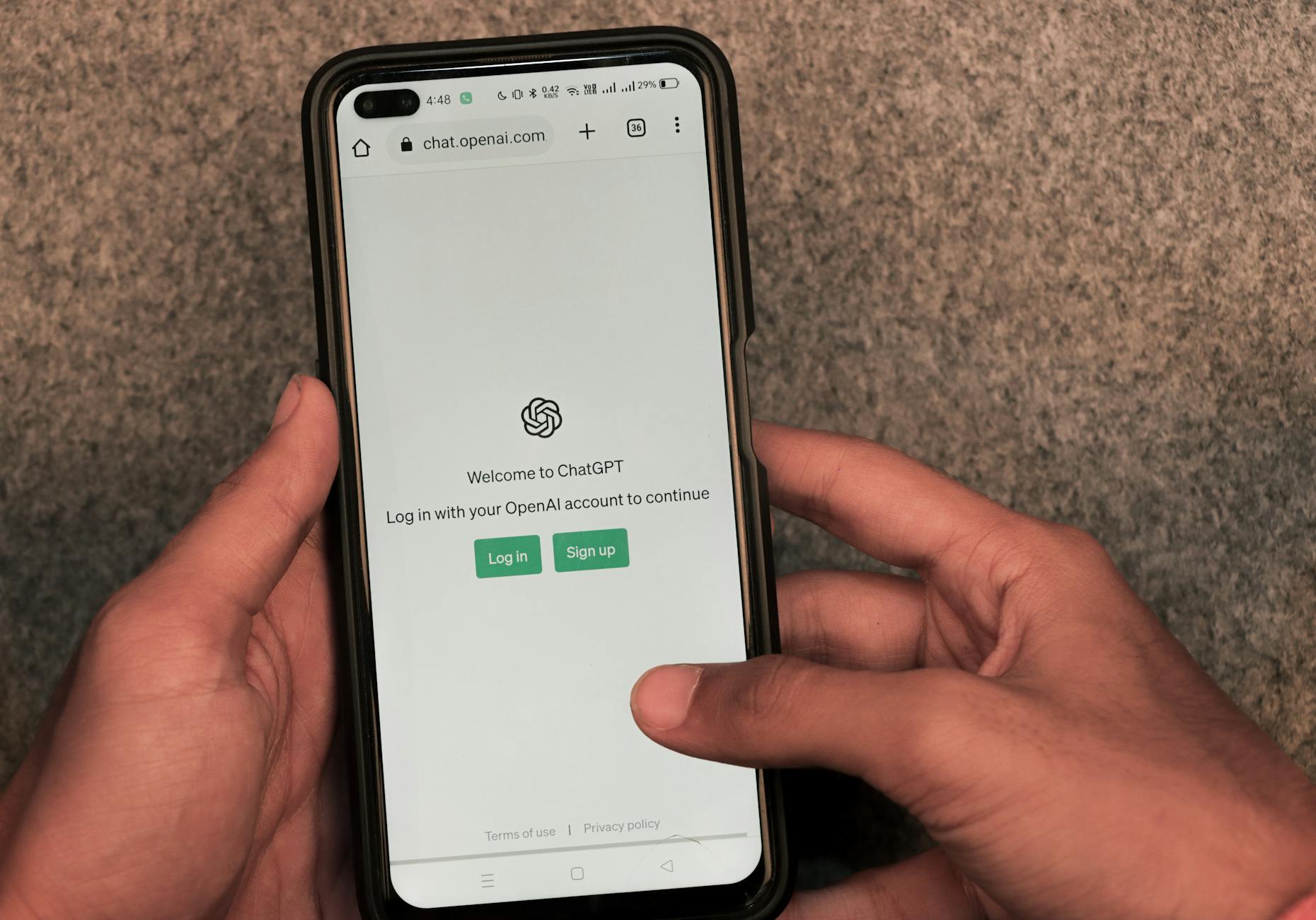
Photo by Sanket Mishra
AI scam detectors block scam calls, shady texts, and unsafe links before they become a problem. Here is how to set one up:
- Install the App
Download a trusted app like Hiya, Truecaller, or Norton 360 from the App Store or Google Play. - Follow On-Screen Setup Steps
Open the app and grant the requested permissions. You may need to allow access to contacts, messages, or call logs so the AI can spot scams. - Enable Real-Time Alerts
Turn on push notifications for instant warnings about scam calls, texts, or sites. - Customize Blocking Options
Most apps let you choose the level of protection, from warnings only to blocking suspicious contacts automatically. - Review Alert History
Check the app’s dashboard for past alerts and blocked numbers. You can unblock numbers or mark safe contacts at any time.
How Alerts Work:
- When a scam call or text is detected, you will see a pop-up or a colored warning screen.
- For fraudulent websites, the app may block access entirely or redirect you to a warning page.
- False positives can sometimes occur; always double-check blocked items before deleting.
Common Setup Problems:
- Not granting all permissions restricts scanning abilities.
- Disabling notifications stops alerts from working.
- Forgetting to check the alert log can leave you unaware of missed scam attempts.
Getting these tools running is simple. Take the time to follow each prompt and check settings for full coverage. Once set up, you’ll have peace of mind knowing AI is quietly blocking threats while you go about your day.
Common Pitfalls and How to Avoid Them
AI-powered cybersecurity apps simplify online safety, but they are only effective when used correctly. Many users fall into common traps that weaken their security, even when using trusted tools. Recognizing these missteps and knowing how to avoid them will ensure your protection stays strong and reliable.
Skipping Software Updates

Photo by Matheus Bertelli
Many users put off updating their apps or operating systems, thinking it is not urgent. Outdated apps miss important security fixes, making you more vulnerable to new threats.
- Always enable automatic updates for your cybersecurity tools.
- When an update prompt appears, install it promptly.
- Schedule regular checks for updates if automatic settings are not available.
By staying current, you close the door on attacks that target older software versions.
Creating Weak or Reused Passwords
Even the best password manager cannot protect you if your master password is weak or if you use the same password across several sites. A strong, unique master password is the backbone of account safety.
- Use a passphrase that combines unrelated words, numbers, and symbols.
- Never reuse your master password on other sites.
- Store your master password in a secure place, such as a written note kept in a safe spot.
Whenever prompted, let your password manager generate complex passwords for each account.
Ignoring Security Alerts and Notifications
Security apps are only helpful if you pay attention to their warnings. Many people dismiss alerts, thinking they are not important or are false alarms.
- Read each alert carefully. Respond as soon as possible.
- Do not ignore repeated warnings about suspicious sites, texts, or emails.
- Adjust your notification settings to make sure you never miss a critical security message.
If you are unsure about an alert, visit the app’s help section for guidance.
Rushing Through Setup Steps
Most cybersecurity apps guide you through setup with easy steps, but it is tempting to rush through these prompts. Skipping steps can leave important protections off.
- Take your time during installation.
- Follow each prompt carefully, especially when it comes to permissions and security settings.
- Double-check that key features such as real-time scanning or biometric login are active.
Occasionally review your app’s dashboard to confirm all protections are still on.
Denying Necessary Permissions
Many security tools need access to calls, texts, contacts, or browser data to prevent scams and block threats. Declining these permissions weakens the app’s ability to do its job.
- Grant the permissions asked for during the setup process.
- If you missed this step, revisit your device’s settings to enable required access.
- Review permission settings after updates, as requirements may change.
Granting these permissions is safe with reputable apps from trusted sources.
Forgetting to Back Up Recovery Information
Losing access to a master password or two-factor authentication method can lock you out. Many users skip backup steps, thinking they will never need them.
- Write down your recovery codes or backup keys and store them in a secure place.
- Enable account recovery options, such as trusted contacts or backup email addresses.
- Test your recovery method once, to make sure you understand the process.
A backup can be the only way to regain access if you forget your credentials.
Failing to Review and Update Settings
Cybersecurity threats change over time, and tools often add new features. Failing to review app settings means you may miss out on improved defenses.
- Periodically open your security apps and explore settings or new features.
- Activate extra protections as they become available.
- Read app news or update notes to stay informed about new capabilities.
A regular review helps you keep up with best practices and evolving threats.
By identifying these frequent mistakes and following simple steps to avoid them, you can get the full benefit from today’s AI-based cybersecurity apps. Good habits, such as updating software, responding to alerts, and creating strong passwords, keep your digital life safer with minimal effort.
How AI Security Tools Fit Into Safer Everyday Habits
AI security tools now play a big part in building safer online routines for everyone at home or on the go. Their design puts strong protection within reach, shifting safety from a complex technical task to an everyday habit. Instead of only reacting to problems, these apps help users prevent threats, build better habits, and make smarter choices almost without thinking.
Making Digital Security a Daily Habit

Photo by Ron Lach
AI-powered cybersecurity apps fit seamlessly into your daily routines by solving problems before they start. They work in the background, protecting everything from shopping and banking to family chats and social media. When these tools are part of your normal habits, safety becomes second nature.
Practical steps to make security automatic:
- Set apps to update automatically so you always have the latest protection.
- Review security notifications and alerts as soon as they pop up.
- Use the password suggestions made by your password manager instead of recycling old passwords.
- Allow scam detectors to run checks on calls, texts, and websites without turning off permissions.
Consistent action builds good habits. For example, treating security prompts like important reminders and not something to skip helps you avoid common threats like phishing, weak passwords, or scam calls.
Simple Routines That Reduce Risk
AI tools are most effective when combined with mindful routines. Taking a few simple steps makes a huge difference for personal privacy and security.
Here are habits that work well with AI cybersecurity apps:
- Check for app updates weekly: Outdated software is more vulnerable, so regular updates are your first defense.
- Scan recent alerts: A quick review of your security app’s dashboard shows if any suspicious activity has been blocked.
- Review saved passwords: Now and then, let your manager check for reused or weak passwords.
- Change passwords when notified: If your manager warns about a data breach, follow the suggestion to update that password.
- Stay aware of new scams: Many apps offer tips about the latest phishing tactics or scam messages. Take time to read them.
Small habits build into a strong defense over time. By automating basic tasks with AI apps and making brief manual checks part of your week, you strengthen your protection without extra effort.
Tips to Make Security Second Nature
Turning digital safety into a habit is easier than ever with AI-driven apps guiding the way. To stay on track, keep these reminders in mind:
- Respond to security reminders: Don’t ignore warnings, update prompts, or breach alerts.
- Set aside regular review time: Once a month, review your app’s activity and settings.
- Keep learning: Explore new features or tips your app suggests. Knowledge grows with use.
- Involve your family: Teach children and older relatives to spot common scams and to follow security prompts.
Adopting these small actions alongside your AI tools creates a routine that works quietly in the background, protecting you every day. Good habits help you get the most out of your cybersecurity tools, keeping your information safe without adding stress.
Conclusion
AI-powered cybersecurity tools give everyone the ability to stay safe online with less effort. With simple setup and clear guidance, these apps turn complex protection into everyday habits suited for non-technical users. Choosing easy-to-use tools and following basic steps ensures strong defense against modern threats.
Strong online security is now within reach for all. Take action today by picking a trusted AI cybersecurity app, following the setup prompts, and building small routines that keep you protected. Your safety starts with the first step, and each good habit makes a real difference.
Thank you for reading. If you found this guide helpful, share it with others who want simpler, stronger online security.


Leave a Comment